

A web page is rarely made from one file. Most pages are built from three languages that each do a different job, and the page only feels complete when all three cooperate. This article shows how HTML, CSS and JavaScript work together by building one tiny feature from start to finish.
The feature is a button that shows and hides a text panel. It is small enough to read in a minute, yet it uses every layer of a real page.
Table of Contents
How HTML, CSS and JavaScript Work Together: The Three Layers
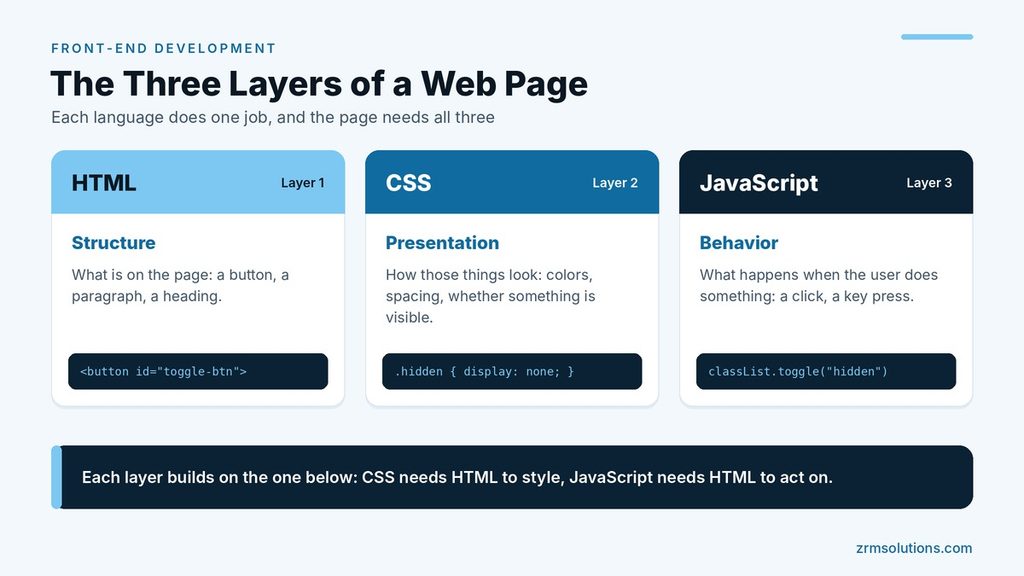
Picture a page as three layers stacked on top of each other:
- Structure (HTML): what is on the page. A button, a paragraph, a heading.
- Presentation (CSS): how those things look. Colors, spacing, borders, whether something is visible.
- Behavior (JavaScript): what happens when the user does something. A click, a key press, a scroll.
Each layer builds on the one below it. CSS needs HTML to style, and JavaScript needs HTML to act on. Each language has its own article in this series, so this one focuses only on the connections between them.
How the Files Link to Each Other
The HTML file is always the starting point. The browser opens it first, and the HTML tells the browser which other files to fetch.
html
<head>
  <link rel="stylesheet" href="style.css">
  <script src="script.js" defer></script>
</head>
The link tag attaches a stylesheet, and the script tag attaches a JavaScript file.
What the Browser Does With Them, in Order
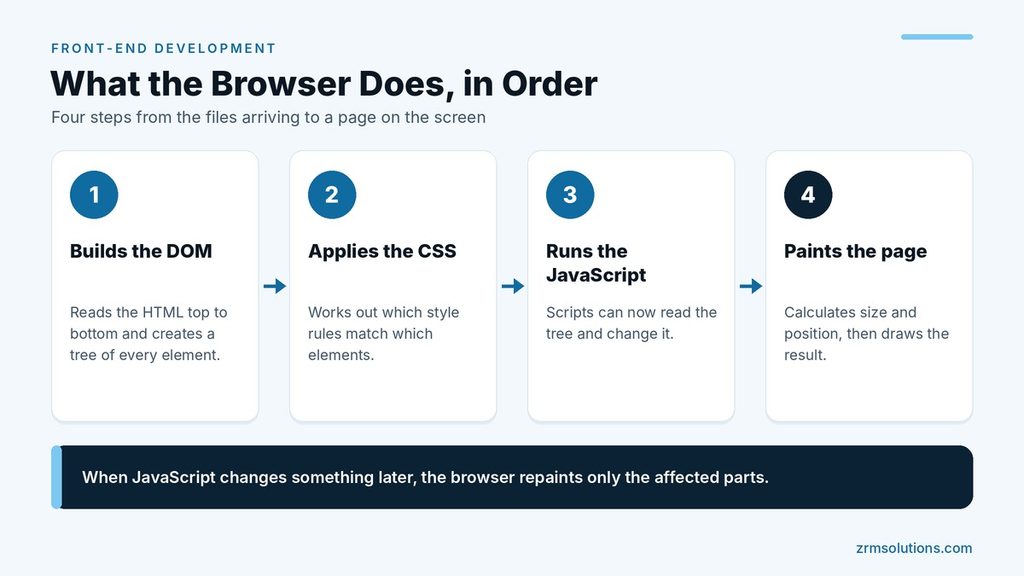
Once the files arrive, the browser follows a set sequence:
- It builds the DOM. The browser reads the HTML from top to bottom and creates a tree of every element, called the Document Object Model.
- It applies the CSS. The browser works out which style rules match which elements.
- It runs the JavaScript. Scripts can now read the tree and change it.
- It paints the page. The browser calculates the size and position of each element and draws the result on screen.
When JavaScript changes something later, such as adding a class, the browser repaints the affected parts. No page reload is needed.
Building the Example in Three Steps
Step 1: HTML for the structure
html
<!DOCTYPE html>
<html lang="en">
<head>
  <meta charset="UTF-8">
  <title>Toggle Panel</title>
  <link rel="stylesheet" href="style.css">
  <script src="script.js" defer></script>
</head>
<body>
  <button id="toggle-btn">Show details</button>
  <p id="panel" class="panel hidden">Delivery takes 3 to 5 working days.</p>
</body>
</html>
The id and class values are the hooks that the other two languages will use.
Step 2: CSS for the presentation
css
.panel {
  padding: 16px;
  border: 1px solid #cccccc;
  background-color: #f5f5f5;
}

.hidden {
  display: none;
}
The first rule makes the panel look like a box. The second rule hides anything that carries the hidden class. Because the paragraph has both classes, it starts out invisible.
Step 3: JavaScript for the behavior
js
const button = document.getElementById("toggle-btn");
const panel = document.getElementById("panel");

button.addEventListener("click", function () {
  panel.classList.toggle("hidden");

  if (panel.classList.contains("hidden")) {
    button.textContent = "Show details";
  } else {
    button.textContent = "Hide details";
  }
});
The script finds the two elements, waits for a click, then switches the hidden class and updates the button label. These methods are explained in the articles on the JavaScript DOM and JavaScript events.
Notice the teamwork. JavaScript never sets a color or a size. It only switches a class, and CSS decides what that class looks like.
Where to Place the Script Tag and What defer Does
By default, when the browser meets a script tag it stops reading the HTML, downloads the script and runs it at once. If that happens in the head, the button does not exist yet, so the script fails with an error.
There are two common fixes:
- Put the
scripttag at the very end of thebody, just before</body>. - Keep it in the
headand add thedeferattribute.
With defer, the browser downloads the file in the background while it keeps reading the HTML, then runs the script only after the whole document has been read. Deferred scripts also run in the order they appear. Note that defer works only on scripts loaded with src.
Separation of Concerns: One Job per File
Keeping structure, presentation and behavior in separate files is called separation of concerns. It brings clear benefits:
- Easier to find things. A spacing problem lives in the CSS file, a click problem in the JavaScript file.
- Reuse. One stylesheet can style every page of a site.
- Faster repeat visits. The browser can save a CSS or JavaScript file and reuse it on other pages.
- Safer changes. You can redesign the look without touching the content or the logic.
What Breaks When One Layer Is Missing
Removing one file at a time from the example shows what each layer contributes.
| Missing layer | What the visitor gets |
|---|---|
| CSS | A plain page. The hidden rule is gone, so the panel is always visible and only the button label changes. |
| JavaScript | A styled page with a button that does nothing. The panel stays hidden forever. |
| HTML | An empty page. CSS and JavaScript have nothing to style or change. |
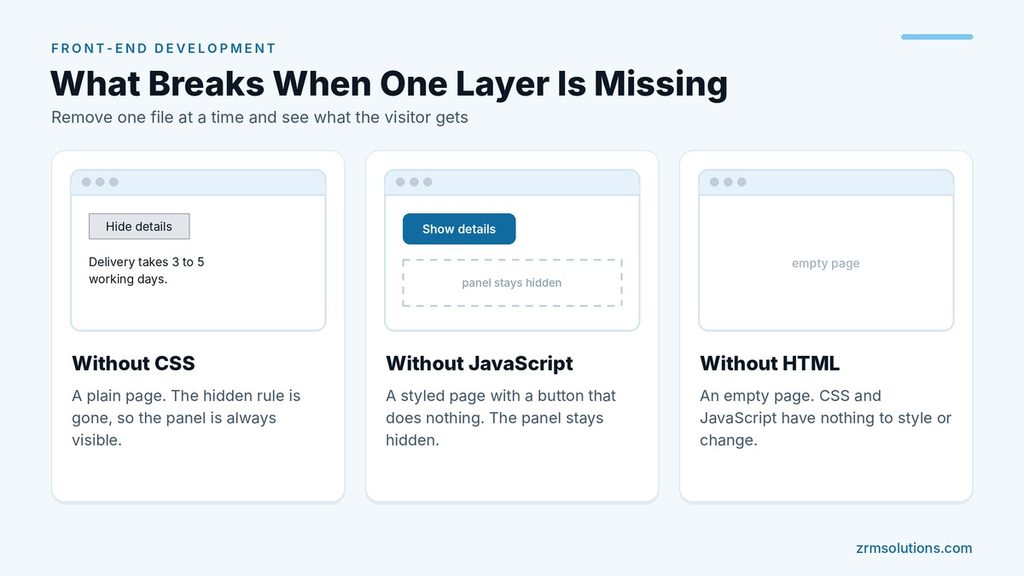
The JavaScript row carries a lesson: content that visitors must read should not depend on a script alone.
Frequently Asked Questions
Can a web page work with HTML only?
Yes. It shows its content with the browser’s default look and no custom behavior. CSS and JavaScript are optional layers on top.
Can I put CSS and JavaScript inside the HTML file?
Yes, using a style tag and a script tag without src. That is fine for a quick test, but separate files are easier to maintain.
Is defer better than putting the script at the end of the body?
Both make sure the HTML is read before the script runs. With defer in the head, the browser can start downloading the file earlier, so it is the common choice for external scripts today.
Final Thoughts
HTML provides the structure, CSS controls the presentation and JavaScript adds the behavior, with the HTML file linking the other two. Once you can see the three layers in a small example, you can spot them in any page.
Related reading
- HTML Basics for Front-End Development
- Introduction to JavaScript DOM
- JavaScript Events and Event Handling