

Every web page you have ever visited is, underneath, an HTML file. Learning HTML basics is the first practical step in front-end work, and you can write a complete, working page in a single sitting.
This guide walks through that first page, from an empty file to something you can open in your browser. All you need is a code editor and a browser.
Table of Contents
What HTML Is and What It Is Not
HTML stands for HyperText Markup Language. It describes the content of a page: this is a heading, this is a paragraph, this is an image, this is a link.
HTML is a markup language, not a programming language. It cannot make decisions, do calculations or repeat actions. It also does not control appearance. Colors, fonts and layout are the job of CSS.
The labels are written as tags inside angle brackets. Most come in pairs, an opening tag such as <p> and a closing tag with a slash, </p>. How elements work in detail is covered in Introduction to HTML Elements.
The Page Skeleton
Every HTML page starts with the same frame:
html
<!DOCTYPE html>
<html lang="en">
<head>
  <meta charset="UTF-8">
  <meta name="viewport" content="width=device-width, initial-scale=1.0">
  <title>My First Page</title>
</head>
<body>
  <p>Hello, world!</p>
</body>
</html>
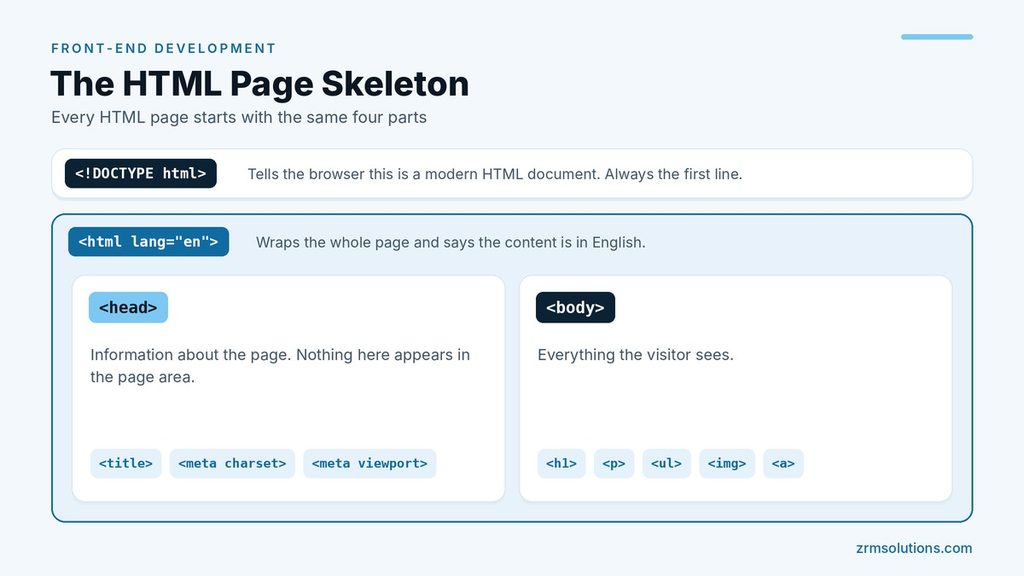
Four parts do the work:
<!DOCTYPE html>tells the browser this is a modern HTML document. It always goes on the first line.<html>wraps the whole page. Thelang="en"part says the content is in English.<head>holds information about the page. Nothing in it appears in the page area itself.<body>holds everything the visitor sees.
What Goes in the Head
Three lines belong in the head of every page you write:
<title>sets the text shown on the browser tab. Search engines usually use it as the headline of the result too.<meta charset="UTF-8">tells the browser which character set to use, so accented letters and symbols display correctly.<meta name="viewport" ...>tells phones to show the page at the width of the device instead of a zoomed-out desktop view.
HTML Basics in Practice: Your First Page
Now replace the single paragraph in the body with real content. This example uses the pieces you will reach for most often: headings, paragraphs, a list, an image and a link.
html
<body>
  <h1>My Favorite Hobby</h1>
  <p>I started baking bread last year.</p>

  <h2>What I Bake</h2>
  <ul>
    <li>Sourdough</li>
    <li>Flatbread</li>
  </ul>

  <img src="bread.jpg" alt="A loaf of sourdough bread">
  <p>Read about <a href="https://en.wikipedia.org/wiki/Bread">bread</a>.</p>
</body>
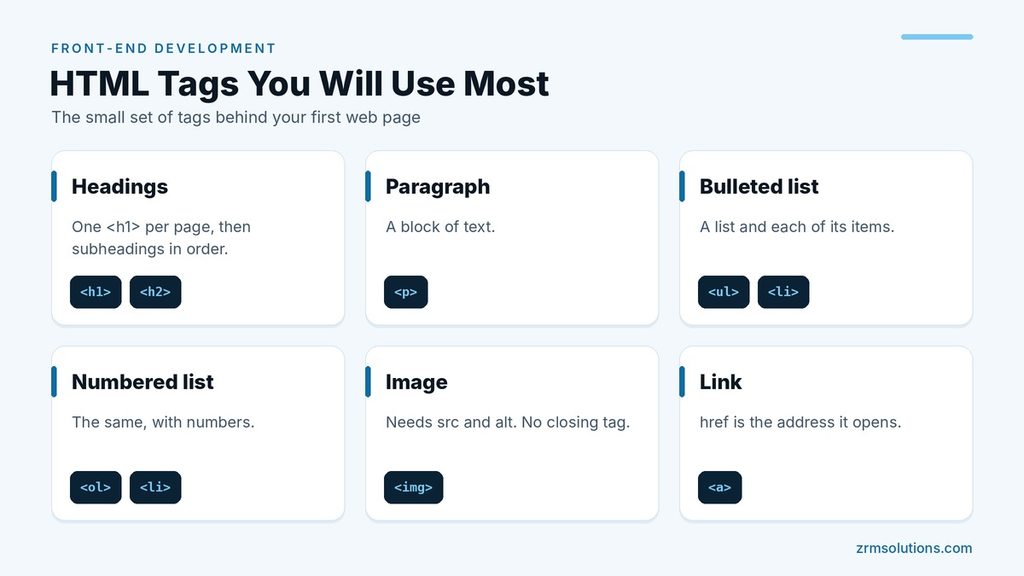
Here is what each tag does:
<h1>is the main heading. Use one per page.<h2>to<h6>are subheadings, in order of importance.<p>is a paragraph.<ul>is a bulleted list and each<li>is one item. Use<ol>instead for a numbered list.<img>shows an image and has no closing tag.srcis the file to load.altis a text description that screen readers read aloud and that appears if the image fails to load.<a>is a link.hrefis the address it opens.
The src, alt and href parts are called attributes. Understanding HTML Attributes explains them in full.
Saving and Opening Your File
- Create a folder on your computer named
my-site. - In your editor, create a new file and type in the skeleton with the new body.
- Save it as
index.htmlinside the folder. The.htmlending is what tells the computer it is a web page. - Put any photo named
bread.jpgin the same folder. - Double-click
index.html. It opens in your browser.
After each change, save the file and refresh the browser tab to see the result. The name index.html is the convention for a site’s home page.
Comments, Indentation and Good Habits
A comment is a note for people reading the code. The browser does not display it.
html
<!-- Main content starts here -->Comments are still visible to anyone who views the page source, so never put private information in them.
A few habits will save you trouble later:
- Indent nested content. Two spaces per level makes the structure easy to see.
- Write tag names in lowercase.
- Close every tag that needs closing. A missing closing tag is one of the most common causes of a broken page.
- Use simple file names. Lowercase letters and hyphens, no spaces, as in
about-us.html. - Always write alt text for images that carry meaning.
- Use headings in order. Do not jump from
<h1>to<h4>because you like the size. Size is a CSS job.
Semantic Layout Tags in Brief
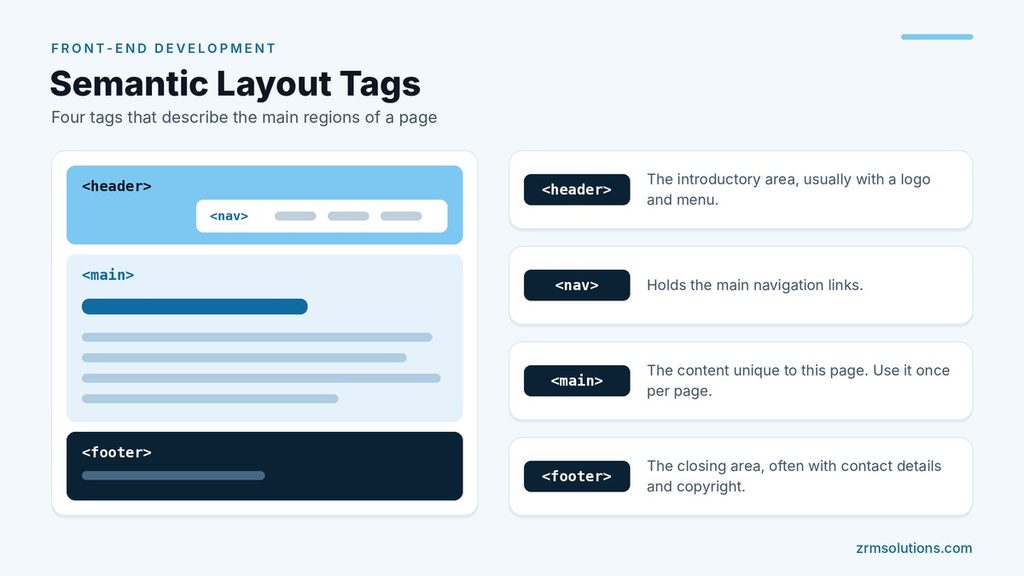
HTML also has tags that describe the main regions of a page:
html
<body>
  <header>
    <nav><a href="index.html">Home</a></nav>
  </header>
  <main>
    <h1>My Favorite Hobby</h1>
    <p>I started baking bread last year.</p>
  </main>
  <footer>
    <p>Written by Sam.</p>
  </footer>
</body><header>is the introductory area, usually with a logo and menu.<nav>holds the main navigation links.<main>holds the content that is unique to this page. Use it once per page.<footer>is the closing area, often with contact details and copyright.
These tags look no different on screen. Their value is that they tell search engines and screen readers what each region is for.
Frequently Asked Questions
Do I need special software to write HTML?
No. Any plain text editor works, even Notepad. A free code editor is more comfortable because it colors the tags and can close them for you.
What is the difference between HTML and HTML5?
HTML5 is the current version of HTML. The <!DOCTYPE html> line at the top of your file is the HTML5 doctype, so in everyday use the two names mean the same thing.
Why does my page look so plain?
HTML only provides structure, so the browser applies its own simple default styles. Design is added with CSS, which is the next step.
Final Thoughts
HTML basics come down to a fixed skeleton, a few lines in the head and a small set of tags for headings, text, lists, images and links. Build this first page by hand a few times, and the pattern will stay with you.
Related reading
- Introduction to HTML Elements
- Understanding HTML Attributes
- CSS Basics for Front-End Development