

Every web page is assembled from small building blocks. A heading, a paragraph, a link, an image and a button are all HTML elements, and a page is simply a collection of them placed inside one another.
This guide looks at how a single element is put together, how elements fit inside each other, how they behave on the page and how they are grouped into families. Once these ideas are clear, any HTML you read will make sense.
Table of Contents
The Anatomy of HTML Elements
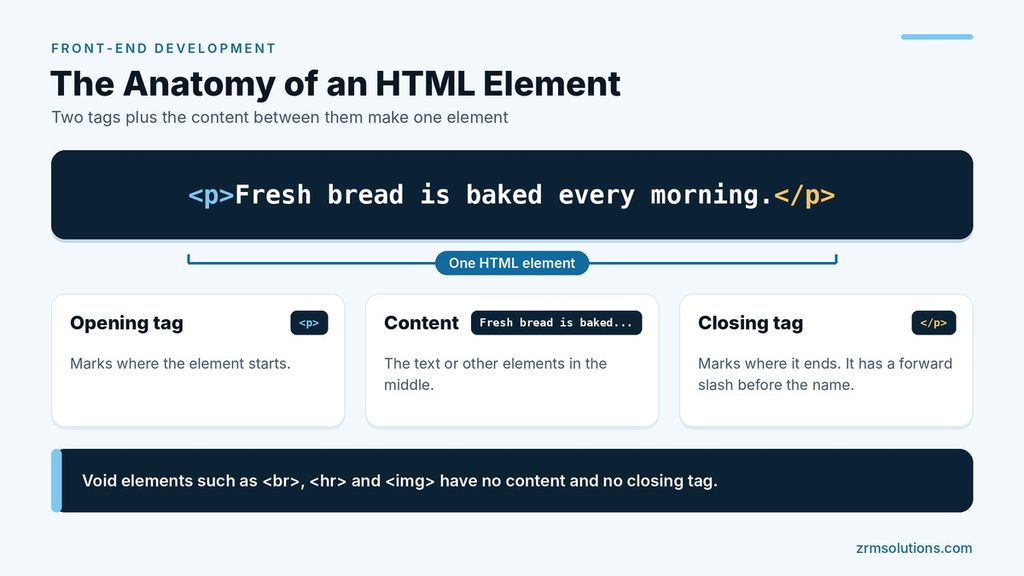
Most elements have three parts.
<p>Fresh bread is baked every morning.</p>- Opening tag:
<p>marks where the element starts. - Content: the text or other elements in the middle.
- Closing tag:
</p>marks where it ends. It has a forward slash before the name.
Strictly, a tag is one of the markers, and the element is the whole thing: both tags plus the content between them.
Tag names are not case sensitive, but lowercase is the standard habit. An opening tag can also carry extra settings called attributes, which have their own article in this series.
Void Elements: Tags With No Content
Some elements have nothing to wrap, so they have no closing tag. These are called void elements, or self-closing elements.
<p>Line one<br>Line two</p>
<hr>
<img src="bakery.jpg" alt="Front of the bakery">
Common void elements are br (line break), hr (dividing line), img (image), input (form field), meta and link. You may see them written with a trailing slash, such as <br />. HTML allows the slash, but it is optional.
Nesting: Parents, Children and Siblings
Placing one element inside another is called nesting. It creates family relationships.
<ul>
  <li>Sourdough</li>
  <li>Rye <strong>(new)</strong></li>
</ul>- The
ulis the parent of bothlielements. - Each
liis a child of theul, and the two are siblings. - The
strongelement is a child of the secondliand a descendant of theul.
The key rule is simple: the element you opened last must be closed first. Indenting each level, as in the example, makes the structure easy to see.
Block-Level vs Inline Elements
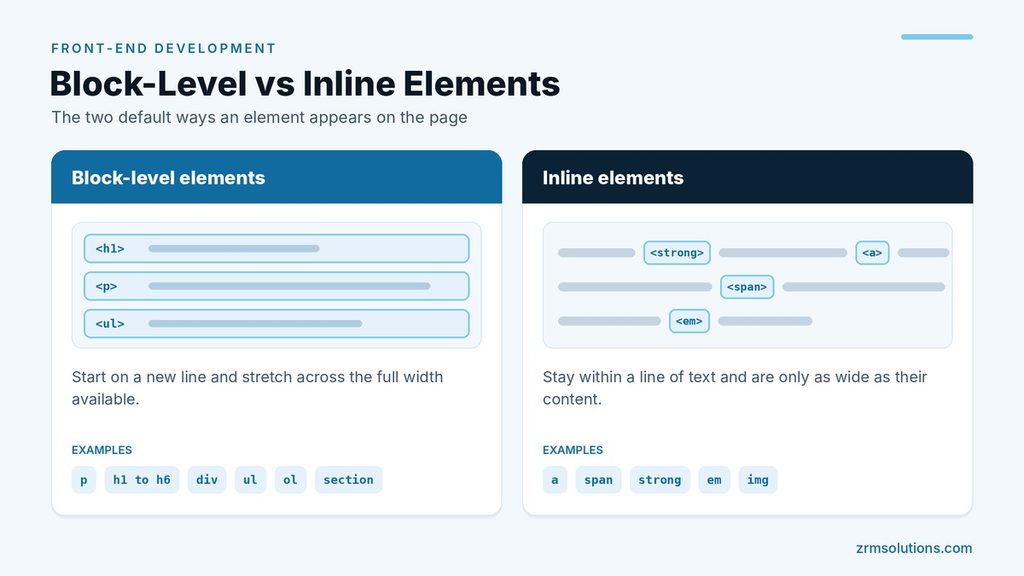
By default, elements appear on the page in one of two ways.
Block-level elements start on a new line and stretch across the full width available. Examples are p, h1 to h6, div, ul, ol and section.
Inline elements stay within a line of text and are only as wide as their content. Examples are a, span, strong, em and img.
html
<p>Our <strong>rye loaf</strong> uses <a href="/flour">local flour</a>.</p>
<p>This paragraph starts on a new line.</p>
The strong and a elements sit inside the sentence, while each p begins on its own line. CSS can change this default behavior, which is a topic for the styling articles.
The Main Families of HTML Elements
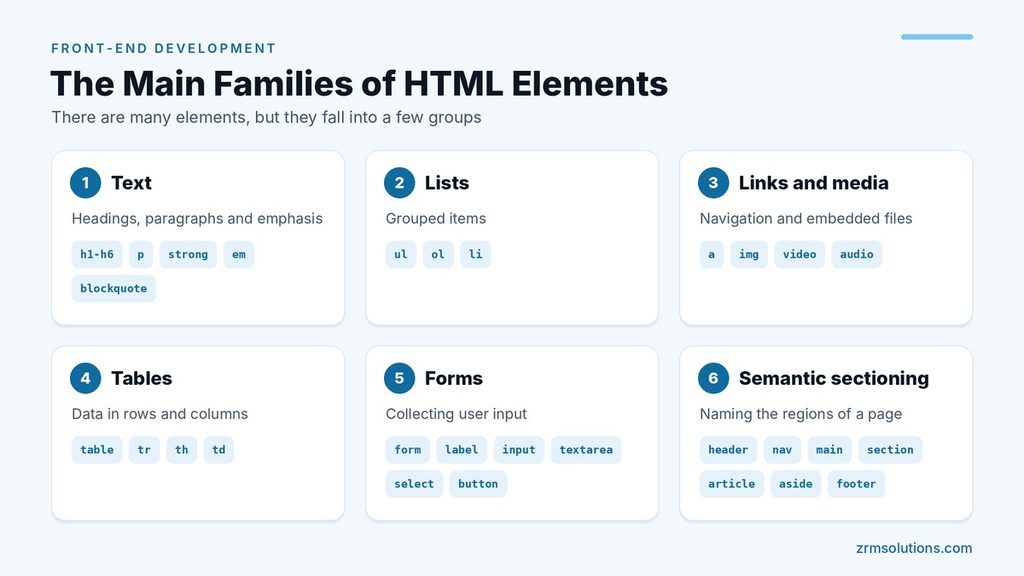
There are many elements, but they fall into a few groups.
| Family | Purpose | Examples |
|---|---|---|
| Text | Headings, paragraphs and emphasis | h1 to h6, p, strong, em, blockquote |
| Lists | Grouped items | ul, ol, li |
| Links and media | Navigation and embedded files | a, img, video, audio |
| Tables | Data in rows and columns | table, tr, th, td |
| Forms | Collecting user input | form, label, input, textarea, select, button |
| Semantic sectioning | Naming the regions of a page | header, nav, main, section, article, aside, footer |
div and span: The Generic Containers
Two elements carry no meaning at all. A div is a generic block-level container, and a span is a generic inline container.
html
<div class="price-box">
  <p>Total: <span class="amount">12.50</span></p>
</div>
Use a div to group several elements for layout when no meaningful element fits. Use a span to mark a few words inside a line so they can be styled or updated. Both should be the last choice, not the first.
Why Semantic Elements Beat Generic Ones
A semantic element describes what its content is. A nav says “this is navigation.” A div says nothing.
Choosing the meaningful element brings real advantages:
- Accessibility: screen readers can announce regions and let users jump straight to the main content or the navigation.
- Search engines: clear structure helps them understand which part of a page is which.
- Readable code:
<footer>is clearer at a glance than<div class="footer">. - Built-in behavior: a
buttoncan be focused and pressed with the keyboard. A clickabledivcannot, unless you add that behavior yourself.
Common Nesting Mistakes
Browsers try to repair broken HTML, but the repair may not match what you intended.
Overlapping tags. Elements must close in reverse order.
html
<!-- Wrong -->
<p>Open <strong>daily</p></strong>

<!-- Right -->
<p>Open <strong>daily</strong></p>
Block elements inside a paragraph. A p cannot contain a div, a list or another p. The browser ends the paragraph early and your layout changes.
List items in the wrong place. An li belongs directly inside a ul or ol, and those lists should have only li elements as direct children.
Interactive elements inside each other. Do not place a link inside a link, or a button inside a link.
Missing closing tags. One forgotten </div> can pull the rest of the page into the wrong container.
Frequently Asked Questions
What is the difference between an HTML tag and an HTML element?
A tag is a single marker such as <p> or </p>. An element is the complete unit: the opening tag, the content and the closing tag together.
How many HTML elements do I need to learn?
The HTML standard defines more than 100 elements, but a few dozen cover most everyday pages. Start with the families in the table above.
Can a block-level element go inside an inline element?
As a general rule, no. The main exception is the a element, which is allowed to wrap larger content, such as a whole card, as long as there is no other interactive element inside it.
Final Thoughts
HTML elements are simple once you see the pattern: tags around content, nested in a clear parent and child order, and chosen for what they mean. Get those right, and everything you add later has a solid base.
Related reading
- HTML Basics for Front-End Development
- Understanding HTML Attributes
- Website Accessibility in Front-End Development